





Offline evals
Offline evals test your AI agent against known inputs before you ship a prompt, model, or code change. Run your agent and score its outputs locally or in your CI, using your existing test framework. The PostHog SDK uploads the results so you can compare runs and inspect failures.
Online evaluations help you find failures in production. Add those failures to your offline test set to check that your next change fixes them. For a walkthrough, see turn a production failure into a test case.
How offline evals work
Each run follows four steps:
- Choose test cases – Each case has an input and, optionally, an expected output. Keep them in your code, a file, or a PostHog dataset.
- Run your agent – An experiment is one run of your test cases. Each experiment item holds one case's input, actual output, and expected output.
- Score the output – Use code checks, an LLM judge, or your existing evaluation library.
- Upload the results – Send the items and scores to PostHog, then mark the experiment complete.
A scorer defines what a result means: its name, value type, and passing rule. A reported scorer records scores calculated by your evaluation code and reported to PostHog, such as whether your agent selected the expected tool. With a composite scorer, PostHog calculates a score from other reported scores for the same item.
Run your first experiment
This example checks the tool and arguments a support agent selects for six requests. It uses local routing rules, so you don't need a model API key or external tools.
Three deliberate mistakes give you failures to inspect: a wrong tool, a missing order ID, and an incorrect order ID. After trying the demo, replace run_agent() / runAgent() with your agent and adapt evaluate_answer() / evaluateAnswer() to your checks.
1. Install the SDK and configure access
Install the latest SDK. This quickstart requires:
- Python: Python 3.10+ and
posthog7.74.0+. - TypeScript: Node.js matching
^20.20.0 || >=22.22.0and@posthog/ai8.16.0+.
This walkthrough uses a personal API key to create and read scorers. Experiments you create with it are attributed to your PostHog user. For uploads from your CI, use a project secret API key, which isn't tied to a person. See Use results in your CI.
Create a personal API key with access to your project and these scopes:
| Scope | Used for |
|---|---|
offline_evaluation_ingestion:write | Creating experiments, uploading results, and completing runs |
llm_analytics:read | Reading an existing scorer |
llm_analytics:write | Creating the scorer in the next step |
dataset:read | Reading a PostHog dataset, if you use one later |
Set these environment variables in your terminal or your CI secrets:
Find your project ID in project settings. For an EU project, set POSTHOG_HOST to https://eu.posthog.com.
Keep your API key in an environment variable or your CI's secret store. Never commit it or expose it in browser code. Your public project token can't authenticate these requests.
2. Create two scorers
Save this as create_scorers.py or create_scorers.mts and run it once to create Correct tool and Correct arguments. For both scorers, true passes and false fails.
Save the two printed scorer IDs. The run script fetches each scorer once and uses its current version for every case:
Reuse these scorers across experiments to keep their history together. To compare runs against a fixed configuration, save the version IDs (current_version_id / currentVersionId) instead of fetching the latest versions.
3. Run the cases and upload scores
Save this as support_eval.py or support_eval.mts. It uploads two scores per case, each with an explanation. The argument check compares exact key-value pairs independently of the tool name, so a case can pass one check and fail the other.
Run the script with the environment variables from the previous steps:
Open Experiments and select Support agent baseline. You should see six items and twelve results. Correct tool passes five of six cases (83.33%), and Correct arguments passes four of six (66.67%).
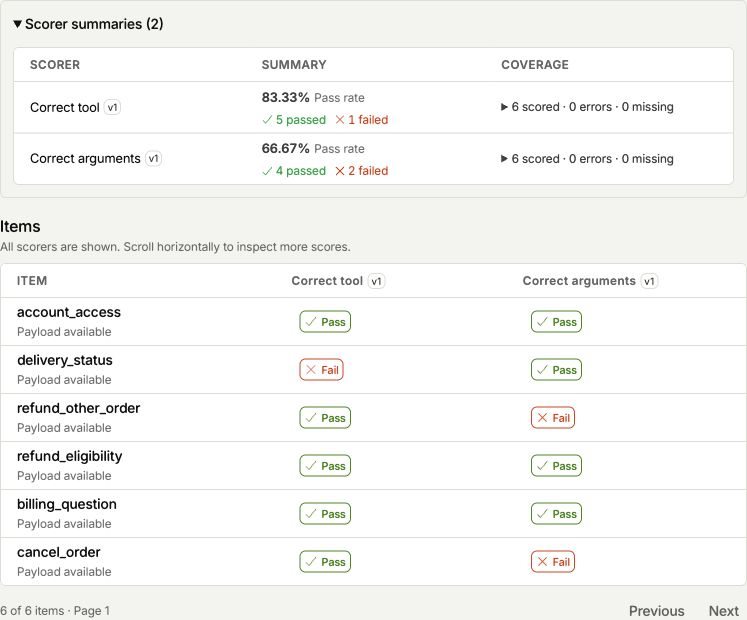
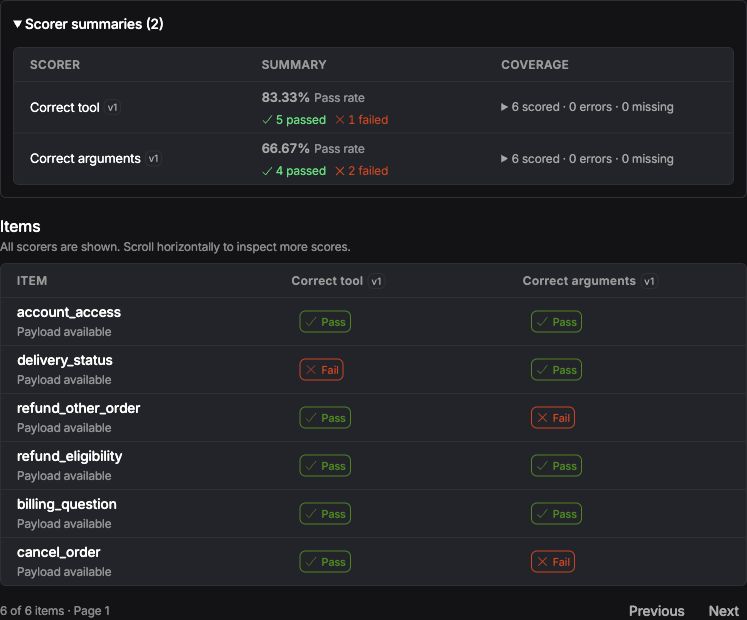
- 1Click Fail to inspect this argument check.
Keep suite_key / suiteKey the same across runs of a test suite and case_key / caseKey the same for each test case. To repeat a case within one run, create a new EvaluationItem with the same case key and a distinct trial, such as "1" or "2".
Call complete() after the uploads succeed, or fail() if the run stops early. Closing the SDK client only releases connections; it doesn't complete the experiment.
Review and compare experiments
See Experiments to compare runs, check coverage, and use results in your CI. After upload, you can edit an experiment item or its reported scores.
Use a PostHog dataset (optional)
To load test cases from a PostHog dataset, see Datasets.
Add more scores
To add scores, handle failed checks, and build composite scorers, see Scorers.
To handle failed checks, see Failed checks and evaluator errors.
Combine scores with a composite scorer
See Scorers.
For each step, see Create the composite, Request a calculation for each item, Write formulas, and Handle missing inputs and calculation errors.
Use MCP
Use the PostHog MCP server to create scorers, manage datasets, and upload experiments from your AI agent. For composites, include the pinned inputs and a calculate: true request for each item.
Data retention
PostHog deletes payloads 30 days after it first accepts the item or result. Edits keep the original deadline.
| Data | Retention |
|---|---|
| Item inputs, actual outputs, expected outputs, and payload metadata | Deleted after 30 days |
| Result reasoning, error messages, and payload metadata | Deleted after 30 days |
| Experiment, item, and result records, including scores, statuses, summaries, and trends | Kept |
Keep your own copy of any payload you need later. You can't restore a deleted or expired payload. Source datasets have their own retention policy.
Pricing
Each newly accepted reported scorer result for one experiment item counts as one AI Observability event. This includes reported results with status error, skipped, or not_applicable. Retries, edits, and deletes add no events. Uploading a deleted result again in an open experiment counts as a new event.
Calculated composite results don't add billed events. For example, the six support-agent cases with two reported scorers and one composite produce 18 results and count as 12 events.
Offline evals share the AI Observability event pricing and free tier with your other AI Observability events. They don't have a separate free allowance.